Recent Posts

    Authors

    Published

    Tag Cloud

    301 302 404 accessibility accounts ACLs advertising aggregation Agile Analytics android APP Article attachments awards backup BCM beta browser business continuity Calendar case-study categories Chrome citigroup cms codes coding standards Complaints contact management software control panel crm CSS customer management software customer relationship system customize database DataModel DDoS demo design designer device compatibility difference distribute a published article via email DND DNS documents drag & drop Editor email EOL erp event Excel featured feeds file manager file sharing file volume Firefox Firewall HA hack Handlebar how-to HTML HTML5 HTTP HTTPS iCal IE Instructions intranet iOS iPad Java JavaScript JDBC JDK Jenkins Job Track Journal JSON JVM landing-page launcher layered database layout logging login mac marketing menu meta Microsoft Outlook mobile module modules mustache navigation NTLM offline page painter password passwords PCI policy poll pricing privacy PROXY publish publisher publsher PWA redirect Redundancy release release-notes Report Tool Reports Responsive ReST RESTFul Rich text RSS Safari sandbox sanity schedule scrum search security SEO sessions setup shipping site builder source spell SQL Injection SSL SSO standards store stSoftware support survey Swagger Task template testimonial Threads timezone tinyMCE Transaction Search trigger twitter twitter bootstrap Ubuntu unit tests unsubscribe URL validation WC3 AAA web folders web services webdav windows 8 wizard workflow WYSIWYG XLS XLST XML XPath XSS

    How to access ST data from Microsoft Excel via ReST web service

    Native data access in Excel with no driver installation required
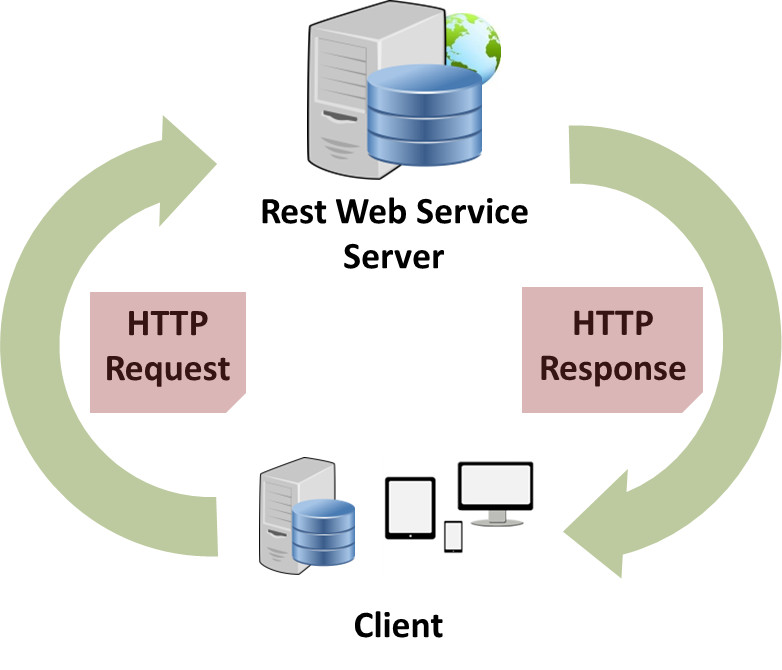
    Excel connection details

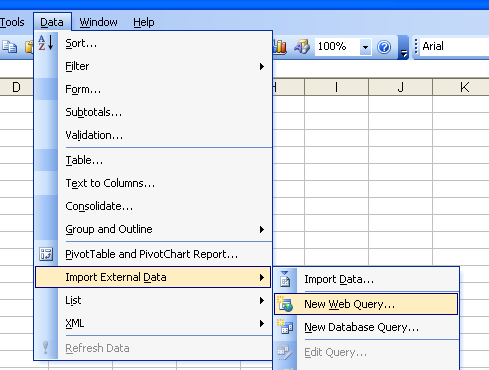
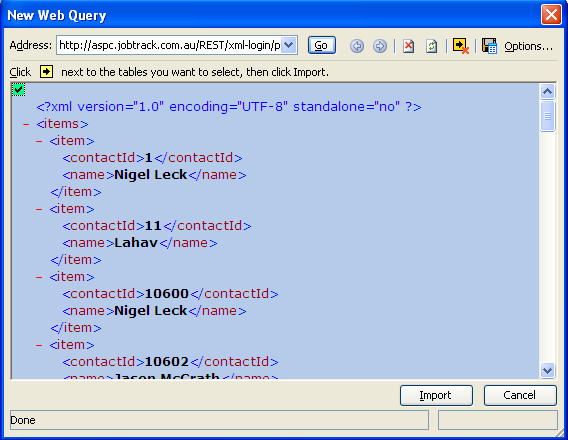
    1. Click the Data menu, select Import External Data/New Web Query
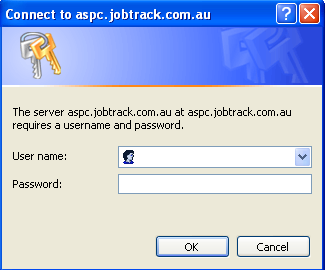
    2. Enter the XML REST address in the Address field, and click "Go" button, the login dialogue pops up, use your ST system user name and password to login
     

    3. You should see the XML below it once you login.
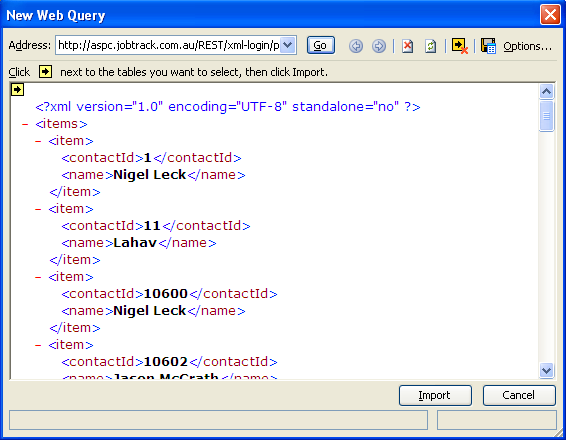
    4.Click the little yellow array on the top left of the XML to select the XML to import, then click "Import" button
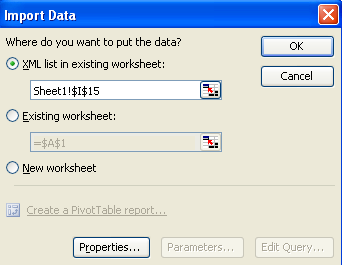
    5. select the position to import the data and click "OK" button to import.
     

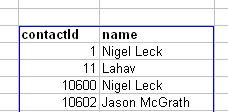
    6. Data imported
     

    Options

    • COUNT=nnn will increase the number of records returned from the default of 100
    • ORDER=column will change the order of the records returned.
    • WHERE=filter will reduce the number of records returned. 
    • OFFSET=nnn will offset the record set.

    The ReST URL examples

    Using the demo system with the user name admin and password admin

    1. get all person's name and contact ID order by name ascending, returns XML format result, login is required

    http://demo.jobtrack.com.au/ReST/xml-login/person?COLUMN=contactid,name&ORDER=name

    2. get all person's name and contact ID where first name is "James", returns XML format result, login is required

    http://demo.jobtrack.com.au/ReST/xml-login/person?COLUMN=contactid,name&ORDER=name&WHERE=firstname%3DJames

    3. get all files with public access order by path descending, returns JSON format result, login is NOT required

    http://demo.jobtrack.com.au//ReST/xml/dbfile?COLUMN=name,path&ORDER=path%20desc 

    COLUMN parameter contains all fields you want to retrieve.

    You may add some other parameters such as WHERE, ORDER, COUNT, and OFFSET

    COUNT is the maximum number of records to be returned. 

    Full ReST API documentation

    Interactive web services